Cyclone 365

Dependable Service. Consistent Results.

With over 25 years of industry experience, we provide a wide range of IT services for small and medium-sized businesses on the Gulf Coast.

Open weekdays from 9am to 5pm.

In-person office meetings by appointment only.

Canceling a Cloud Service Without Losing Your Data

Cloud subscriptions are easy to start and easy to stop, which is exactly what makes them risky. A single account may hold years of customer records, invoices, emails, project history, and staff activity. Cancel before you move that information, and your team may lose access before the business has a usable copy.

Every provider handles the ending differently. Some give administrators extra time to retrieve data. Others restrict access right away or begin deleting information shortly after cancellation. Microsoft 365 business subscriptions move through several lifecycle stages after they end, and Microsoft advises customers to back up their information before deletion. Google tells Workspace customers to export what they want to keep, and notes that third-party application data is not automatically removed when a subscription is canceled. Read the current rules for the specific service you are leaving rather than trusting a general retention period.

Start with the contract

Before you set a cancellation date, confirm when employee access stops, whether administrators can still retrieve data afterward, and how long the information stays available. Check whether the export must be requested before cancellation, when billing actually ends, and whether the account can be reactivated. If you bought the service through a reseller, ask them to confirm the process and the final date of access. Keep every written answer with your cancellation records.

Export everything, then prove it works

Do not assume the standard export includes everything. Many services export the main records but leave out attachments, comments, permissions, deleted items, application settings, automation rules, or activity history. Use a business-owned administrator account, store the files somewhere the company controls, and start early enough to fix failed downloads before access ends.

Then open the files. An export you have never tested is not a backup. Check that attachments are present, dates are correct, and records still connect to the right customer or project. A CSV may contain all the words and numbers while quietly dropping the relationships between them, leaving customers in one file and invoices in another with nothing linking the two. If you are moving to a new platform, import a small batch first and ask the people who use the system every day to confirm it looks right.

Do not forget the connections

Cloud services rarely sit alone. Website forms, accounting software, email campaigns, payment notifications, scheduled reports, mobile apps, and API connections may all depend on the service you are closing. List what sends information in and what pulls information out, move or disable each one, then test that new records land in the correct place.

Sign-ins matter just as much. If staff use “Sign in with Google” or “Sign in with Microsoft” to reach other applications, add another sign-in method first and confirm the business controls the administrator and recovery details. Once the move is finished, revoke old access tokens, API keys, and application connections.

Keep what you are required to keep

Financial records, contracts, consent records, and employee information often carry retention obligations. Speak with your accountant or legal adviser before deleting anything, document what was exported and where it is stored, and ask the provider to confirm in writing what will be deleted and what it must retain. Bear in mind that information removed from active systems may still sit in protected backups until the provider’s normal backup cycle clears it.

Cancellations go wrong quietly, and businesses along the Gulf Coast usually discover the gap months later when someone goes looking for an old invoice. Cyclone 365 helps local businesses plan the exit properly, from verifying exports and rebuilding integrations to confirming deletion with the provider. If you are thinking about leaving a cloud platform, let us check the details before the clock starts. Call or Email us today!

What Belongs in Your Small Business IT Budget

Most IT budgets cover computers, Microsoft 365, and the occasional repair. That leaves out a lot. Your business is likely also paying for software subscriptions, cloud storage, backups, security tools, internet service, phone systems, your website, network equipment, staff training, and outside IT support. Some of those costs show up monthly. Others arrive once a year or only when something breaks.

There is no standard IT budget. Online benchmarks suggest spending a set percentage of revenue on technology, but that number rarely matches what a specific business actually needs. A ten-person law firm, a retail shop, and a manufacturer here on the Gulf Coast can post similar revenue and still run completely different systems. Start by calculating the cost of the systems your business depends on, then use benchmarks for context only.

Begin with a complete inventory. Write down every computer, phone, tablet, printer, server, switch, software license, cloud service, domain, and backup system. Record who uses it, what it costs, when it renews, and how badly the business would hurt if it stopped working. Check invoices, company cards, and department expenses, because software bought directly by an employee rarely appears in the main IT records. Most inventories turn up duplicate services, licenses still assigned to former employees, and subscriptions nobody uses.

Equipment costs more than the sticker price. A new laptop also means monitors, docking stations, headsets, warranty coverage, and the setup work to install software, apply security settings, transfer data, and test access. Replacing a planned number of machines each year is far easier to absorb than waiting until several fail at once. Keep a spare on the shelf, and remember that retired devices need their data securely wiped before they are recycled or sold.

Subscriptions deserve a close look. Note whether each service bills monthly or annually, since several annual renewals landing in the same month can squeeze cash flow even when the monthly math looks fine. Track license counts, remove accounts for departed staff, and plan ahead for hiring. A new employee often needs more than an email license: security software, backup, a business phone number, and device management all come with them. Offboarding carries its own costs, from collecting equipment to preserving files for legal or compliance reasons.

Cybersecurity, backups, and support should be line items, not afterthoughts. Identify security spending clearly even when it is bundled into other agreements, and confirm exactly what your support agreement covers versus what gets billed separately. Budget for the full backup process, including restore testing, because a successful backup notification only proves a task ran. Add internet and network gear, phone services, website and domain costs, staff training, compliance requirements, and planned projects. Then set aside a reserve based on real numbers from past years, not a guess.

Along the Gulf Coast, storm season adds one more reason to get this right. A budget that already accounts for replacement equipment, tested backups, and emergency support is a budget that holds up when the weather does not cooperate. Review it quarterly, compare actual invoices against what you expected, and update the forecast when the business hires, moves, or signs a contract with new security requirements.

If you would rather not sort through all of this alone, Cyclone 365 works with Gulf Coast businesses to build IT budgets that reflect what they actually run. We handle managed IT support, cybersecurity, backup and recovery, network and phone services, and project planning, and we are happy to review your inventory and renewal dates with you before your next budget cycle. Call or Email us today!

Why Administrator Access Should Not Be the Default

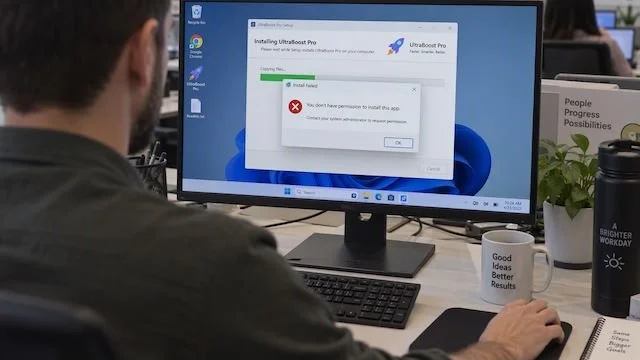
Administrator access usually starts with one small request. Someone needs a printer installed, a specialist program updated, or a setting changed. Granting admin rights solves the problem in the moment, and then it quietly stays in place forever.

From that point on, the employee can approve software installations and system changes that would normally go through IT. If the wrong program gets installed, or someone gains control of that account, those same permissions can be used against the business. For everyday work, employees should be using standard accounts.

What Administrator Access Actually Allows

An administrator has far more control over a computer than a standard user. On Windows, members of the local Administrators group have full control over that machine, which is why Microsoft recommends keeping that group small. Apple gives similar guidance for Mac, recommending a standard account whenever administrator rights are not required.

In practical terms, an administrator can install and remove software, add drivers, create or delete user accounts, change system and security settings, adjust file permissions, and install background services. That is a lot of authority to hand out for a one-time printer install.

It is also worth separating the two kinds of admin access. Local administrator rights apply to one computer. Microsoft 365, Google Workspace, network, and server administrator accounts control email, cloud files, and user accounts across the whole organization. An employee can easily have one without the other, and both deserve their own review.

Why Permanent Admin Rights Raise Your Risk

Software launched by an employee runs with that employee's permissions. When a program asks for administrator approval and an admin user clicks yes, that program can install system components, change settings, and reach data belonging to other users.

This is exactly how fake installers and malicious attachments do damage. The employee believes they are approving a routine update. Windows User Account Control exists to put a checkpoint in that moment, but an administrator can simply approve their own request. A standard user has to supply admin credentials they do not have, which gives IT a chance to look at the program first.

Microsoft describes the standard account as the recommended and more secure way to use Windows. CISA advises businesses to control local administrator access and restrict who can install software, and the Australian Cyber Security Centre lists restricting administrative privileges among its Essential Eight.

Standard Accounts Handle Normal Work Just Fine

Email, web browsing, Microsoft 365, Google Workspace, approved business applications, online meetings, printing, and saving files all work on a standard account. Some applications install within a single user profile without any admin approval at all. The ones that need approval are typically adding drivers, services, or files to protected areas of the system, which is precisely the activity worth reviewing.

Older line of business applications sometimes expect admin rights. Those should be tested before you change anything. In most cases the application can be updated, reconfigured, or granted access to the specific folders it needs.

Getting Software Installed Without Handing Over the Keys

Your IT team or provider can install approved software remotely and confirm the installer came from a legitimate source. Managed deployment tools can push applications and updates to every device without anyone running an installer. For one-off requests, IT can enter the credentials without sharing the password. Employees who genuinely need technical access should be given a separate administrator account used only for approved tasks, while their normal account stays standard.

Who Should Keep Admin Rights

Internal IT staff, your IT provider, an approved technical employee, and specialists responsible for a particular system. That is usually the whole list. Business owners should work from standard accounts too, because owning the company does not require permanent admin rights on every machine.

One more detail that gets overlooked on the Gulf Coast and everywhere else: using the same local administrator password on every computer means one stolen password unlocks them all. Each device needs a unique password or a management service that handles it for you.

Removing Access Without Locking Yourself Out

Do not strip every admin account at once. Start by reviewing the local Administrators group on each Windows machine and the admin users on each Mac, including old, shared, and vendor accounts. Ask what task justifies each one. Confirm your IT provider has a working, protected admin account on every device before you remove anything. Test the software each employee relies on, then convert the account and have them sign out and back in. Finally, tell staff exactly where to send installation requests, and build admin access into your regular reviews so it gets checked whenever someone changes roles or leaves.

If you are not sure who has administrator access on your business computers, that is worth finding out before something forces the issue. Cyclone 365 works with businesses across the Gulf Coast to review account permissions, set up managed software deployment, and lock down admin rights without disrupting the way your team works. Reach out and we will help you sort it out. Call or Email us today!

Why Your Cyber Insurance Renewal Application Got Longer

If you have a cyber insurance renewal coming up, the application in front of you is longer and far more specific than the one you filled out last time. That is not busywork. Every new question maps to a control that, when missing, allowed a major 2023 or 2024 claim to escalate into a very expensive loss.

Three events reshaped the forms. The MOVEit supply chain breach in 2023 eventually touched more than 2,650 organizations and over 66 million individuals, which changed how underwriters ask about third party software. The Change Healthcare ransomware incident in February 2024 froze claims processing nationwide, with reporting pointing to a missing multifactor authentication control on a key entry point and industry estimates placing insured losses above $250 million. The Arup deepfake wire fraud saw a finance employee send $25.6 million across 15 transfers after a video call with AI generated executives. Out of band callback verification is now on every underwriter's checklist because of it.

The backup question tightened first. What used to be a single yes or no now asks whether backups are immutable or air gapped, when they were last tested, and whether your domain administrator credentials could delete them. Native Microsoft 365 retention is no longer a passing answer. The strongest response references object lock or write once storage, an immutability window of at least 14 days with 30 preferred, credentials separated from production admin accounts, and a documented restore test.

MFA is no longer one checkbox. Carriers want it enforced on email, VPN, remote desktop, all administrator accounts, and privileged service accounts. SMS codes are now treated as the weakest factor available, so admin accounts should move to an authenticator app or hardware token. Many forms also ask about privileged access management, meaning a vaulting tool that rotates admin credentials on use and logs every session.

Wire verification gets its own section now. Expect to confirm that transfers above a stated threshold require a callback to a previously verified phone number, not the number on the request email, along with dual approval and annual social engineering training that covers deepfake awareness. Accounting firms, law firms holding trust accounts, and real estate brokerages handling escrow will see this section scrutinized hardest.

Antivirus alone no longer answers the endpoint question. Applications ask whether EDR is deployed across 100 percent of endpoints including servers, and whether a 24/7 security operations center watches the alerts. If MDR is on your roadmap but not yet live, give a real timeline. Underwriters can work with a scheduled deployment. They cannot work with vague intentions.

Vendor risk became a full section. You will likely be asked to list your top five software vendors with access to sensitive data and confirm whether each provides a SOC 2 Type II report. You are not expected to audit them, only to know who holds your data and to have asked the question.

The most expensive mistake on these forms is overstating what you have. Cyber applications are warranty documents, and if a forensic investigation after a claim finds your environment did not match your answers, the carrier can rescind the policy, which means coverage is treated as if it never existed and prior payouts can be clawed back. A declared gap with a remediation date costs you a premium adjustment. A misrepresentation costs you the entire claim.

Thirty days is usually enough to close the worst gaps. Start by confirming MFA coverage everywhere and moving admin accounts off SMS. Verify backup immutability and run a documented test restore. Write a one page wire transfer policy and have your authorizers sign it. Confirm EDR on every endpoint. Request SOC 2 reports from your top vendors. Then update your incident response plan and run a 60 minute tabletop exercise so you have evidence of testing within the past 12 months.

For businesses along the Gulf Coast, where hurricane season already forces hard conversations about continuity and recovery, cyber resilience belongs in the same plan. Cyclone 365 helps regional organizations close these exact gaps before renewal, from immutable backup and MFA enforcement to managed detection and response, so the answers on your application hold up under scrutiny. Call or Email us today!

Five Microsoft 365 Settings Worth Checking in Older Tenants

Microsoft has tightened several Microsoft 365 default settings over the past few years, but those changes rarely apply retroactively. If your tenant was created before 2022, configured by a previous IT provider, or simply left alone for a while, legacy settings are almost certainly still in place. Here are five worth verifying.

Default sharing links in SharePoint and OneDrive. Older tenants often default to "Anyone with the link," meaning any recipient can open a file without signing in, with no expiration and no record of who the URL was forwarded to. Newer Teams-created sites default to "Only people in your organization," but the tenant-level setting frequently still allows Anyone links. Switching the default to "Specific people" in the SharePoint admin center under Policies > Sharing forces authentication on every new link. Setting a maximum expiration for remaining Anyone links is a smart companion step. Roughly 15 minutes, with no impact on existing links until they are regenerated.

External email forwarding rules. Microsoft now blocks automatic forwarding to external addresses at the tenant level through the outbound spam policy. Rules created before that change can still be active, so a user who set up forwarding to a personal Gmail account years ago may still be exporting your data. In the Microsoft Defender portal, confirm the "Automatic forwarding rules" setting under your anti-spam outbound policy is set to Off or System-controlled, then audit existing inbox rules across your mailboxes. The Microsoft Purview audit log can surface inbox rule creation events.

Historical third-party app consents. A Microsoft-managed user consent policy arrived in July 2025, routing most third-party app requests to an admin for review. That change applies going forward only. Apps approved before the policy still hold whatever permissions they were granted, including access to mail, calendars, and files. Review them under Microsoft Entra ID > Enterprise Applications > All applications, sort by user consent, and revoke anything unrecognized or unused. Budget 30 to 60 minutes depending on how long the list is.

Audit log retention. As of October 2023, Audit (Standard) logs are retained for 180 days, up from 90. E5 licensing or the Purview Audit (Premium) add-on extends that to one year for Exchange, SharePoint, OneDrive, and Entra ID records. For Gulf Coast businesses in healthcare, financial services, or legal work, 180 days may fall well short of what HIPAA, the FTC Safeguards Rule, or state bar requirements assume you can produce. Retention policies live in the Microsoft Purview compliance portal under Audit > Audit retention policies.

MFA enforcement and Security Defaults. This is where older tenants are most often inconsistent. Tenants created before Security Defaults rolled out in late 2019 may have no baseline enforcement at all. There is also a common trap: when an admin enables a Conditional Access policy, Microsoft expects that policy to take over MFA enforcement and may switch Security Defaults off. A rushed transition can leave you with Security Defaults disabled and a Conditional Access policy that misses users. Check Security Defaults under Entra ID Properties, confirm a Conditional Access policy actively enforces MFA for all users including administrators, and pay close attention to break-glass accounts that may have been excluded and left unprotected.

A sensible order matters. Audit retention and the app consent review are silent to users, so start there. Verifying external forwarding comes next. The sharing default will generate questions from anyone used to clicking share and pasting a link, so communicate before you flip it. Save MFA and Conditional Access for last, since it carries the highest risk of locking people out.

A few caveats: some of these settings require Business Premium, E3, or E5 licensing, so a grayed-out toggle usually points to your license tier. None of them need to be changed all at once.

If you are not sure when your tenant was last reviewed, that is reason enough to look. Cyclone 365 works with businesses across the Gulf Coast to audit Microsoft 365 configurations, close the gaps that legacy settings leave behind, and keep tenants aligned with current security standards. Reach out and we will walk your environment with you. Call or Email us today!

We provide IT support and services in and around these areas:

Mobile, AL Pensacola, FL Pascagoula, MS
Daphne, AL Fort Walton Beach, FL Gautier, MS
Fairhope, AL Destin, FL Ocean Springs, MS
Foley, AL Panama City, FL Biloxi, MS
Gulf Shores, AL Tallahassee, FL Gulfport, MS
Orange Beach, AL Lake City, FL Pass Christian, MS

★ Copyright © MMXXI. All rights reserved. ★